
Store Portal店舗ポータル 日本語

P&L, dashboard & Shift Planner

Night-life P&L andlabor cost rate,known every day.

The travel fee is free for the first visit only.

Enter the slips, "Daily Entry" (working hours) and your expenses, and this month's sales, operating profit and labor cost rate so far appear next to last month's. Enter the shift plan too, and before opening you know how much you need to sell today to avoid a loss, and how much will be left at month end at this pace.

  • Profit and labor cost rate, compared with last month
  • Today's required sales and the month-end estimate, before opening ("Shift Planner")
  • From the slips to the P&L, connected automatically
  • A report you can paste into an AI and talk through
  • Viewable on the owner's phone even with no signal

Included in every plan (the features are the same at every size; only the price depends on store size) See prices

Good for

  • Stores that want to know mid-month whether they are in the black or the red
  • Stores that want to lower their labor cost rate
  • Stores that decide how many cast to roster by gut feeling
  • Owners who want to see their affiliated stores together
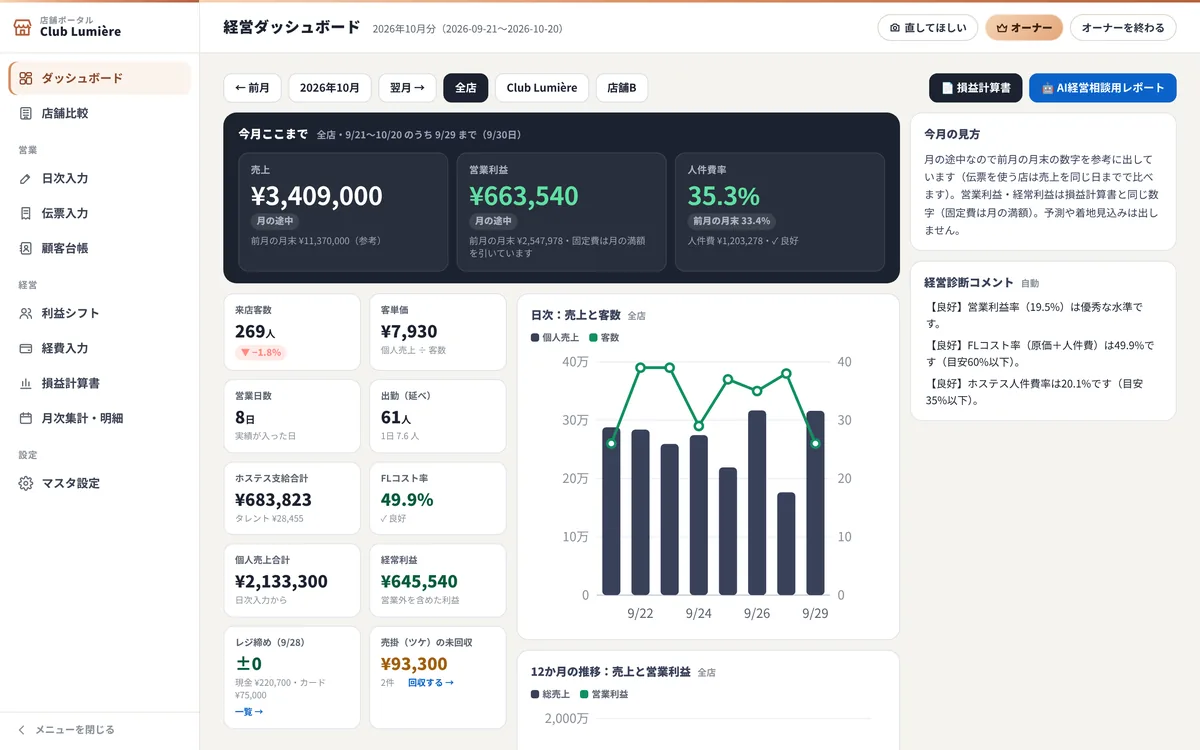
Owner dashboard: sales, operating profit and labor cost rate so far this month, with daily sales and guest counts (demo screen)

Demo screens are shown in Japanese. Stores can switch their screens to English on each device.

Common worries about the business figures

You see the sales every day, but what is left after pay and expenses is not known until the month is over.

  • In the black or in the red? Not known until the month ends

    Until the pay is calculated and the expenses are totaled, you can't see how much this month will leave.

  • Deciding how many to call in by gut feeling

    Too many people on a quiet day, not enough on a busy one. The labor cost rate is left to instinct.

  • The figures are scattered everywhere

    Sales in the daily report, pay by hand, expenses in a pile of receipts. Just putting them together takes a whole night.

  • Nobody to talk the figures over with

    Where should you start fixing things? You end up thinking it over alone.

Sales, profit and labor cost rate at a glance

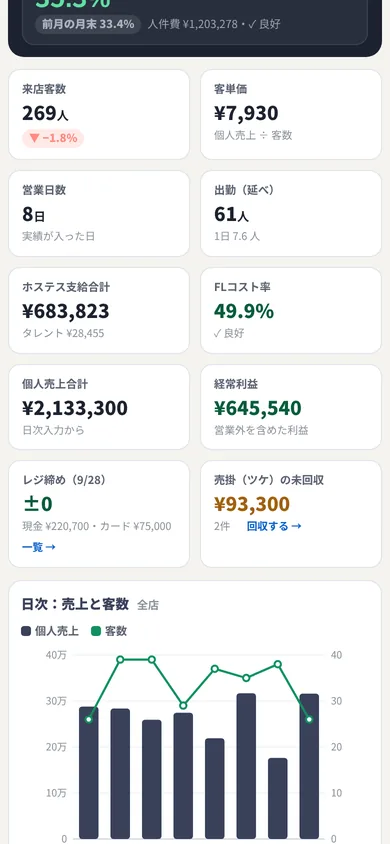
At the top of the owner dashboard: sales, operating profit and labor cost rate so far this month. Last month's figures sit next to them, so you compare as you read. A short business health comment tells you how to read the numbers.

Below that: guests, sales per guest, business days, daily sales and guest counts, and the 12-month trend. If you use register close, the latest register close's over/short and the unpaid tabs (credit) appear on the same screen. The layout reads well on a PC, iPad or phone.

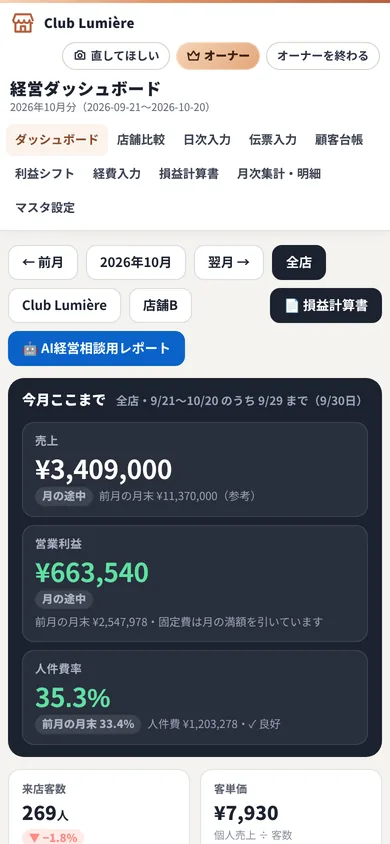
Owner dashboard on a phone: sales, operating profit and labor cost rate so far this month (demo screen)
On the owner's phone

"Shift Planner": how much you need to sell today to avoid a loss

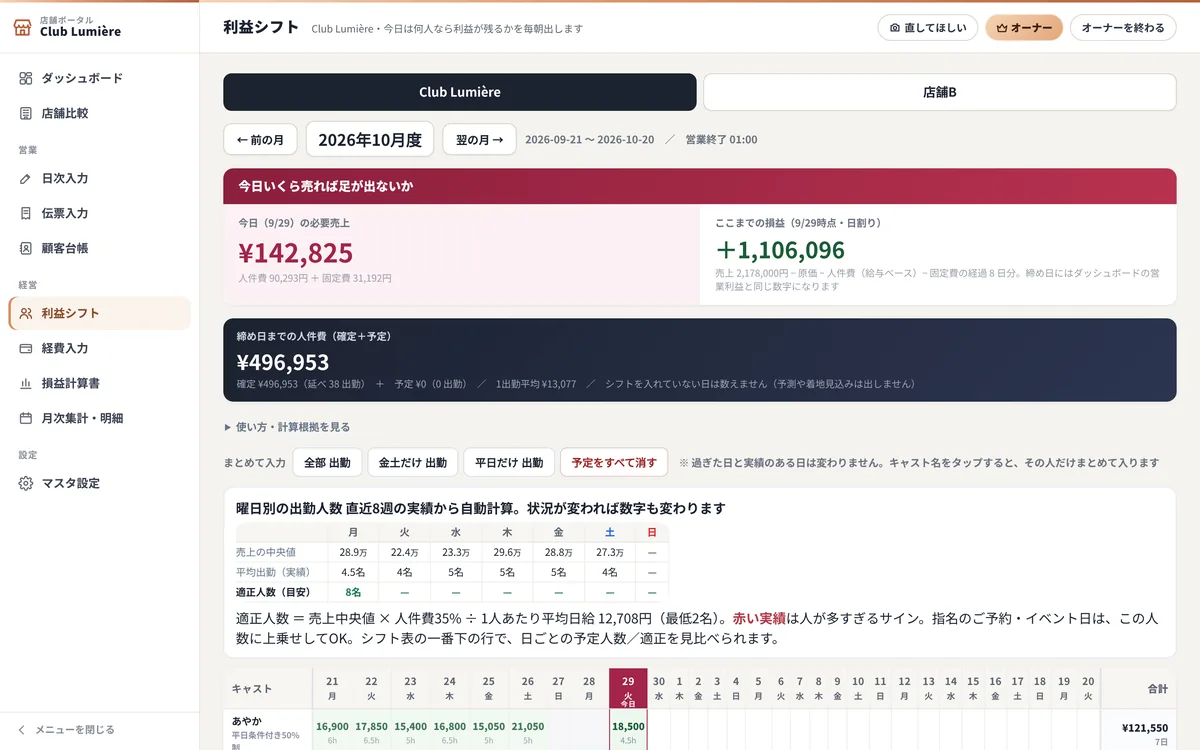
Enter the shift plan in the grid, and today's required sales are worked out from that day's labor cost plus one day's share of fixed costs such as rent. You see this month's profit or loss so far, pro-rated by day, and a month-end estimate of how much will be left if the pace continues.

From each weekday's sales and attendance record, it also gives a recommended headcount for that weekday. Too many people on quiet weekdays, not enough on busy ones? You can review it before building next week's shifts.

"Shift Planner": today's required sales, profit or loss so far (pro-rated by day) and actual vs. recommended headcount by weekday (demo screen)
"Shift Planner" (owner's screen)

Enter your expenses and the P&L builds itself

Pricing rules and pay rules are all built around your store: that is what fully custom-built means at Store Portal. So the sales and labor cost on the P&L come out as the same figures your store calculates.

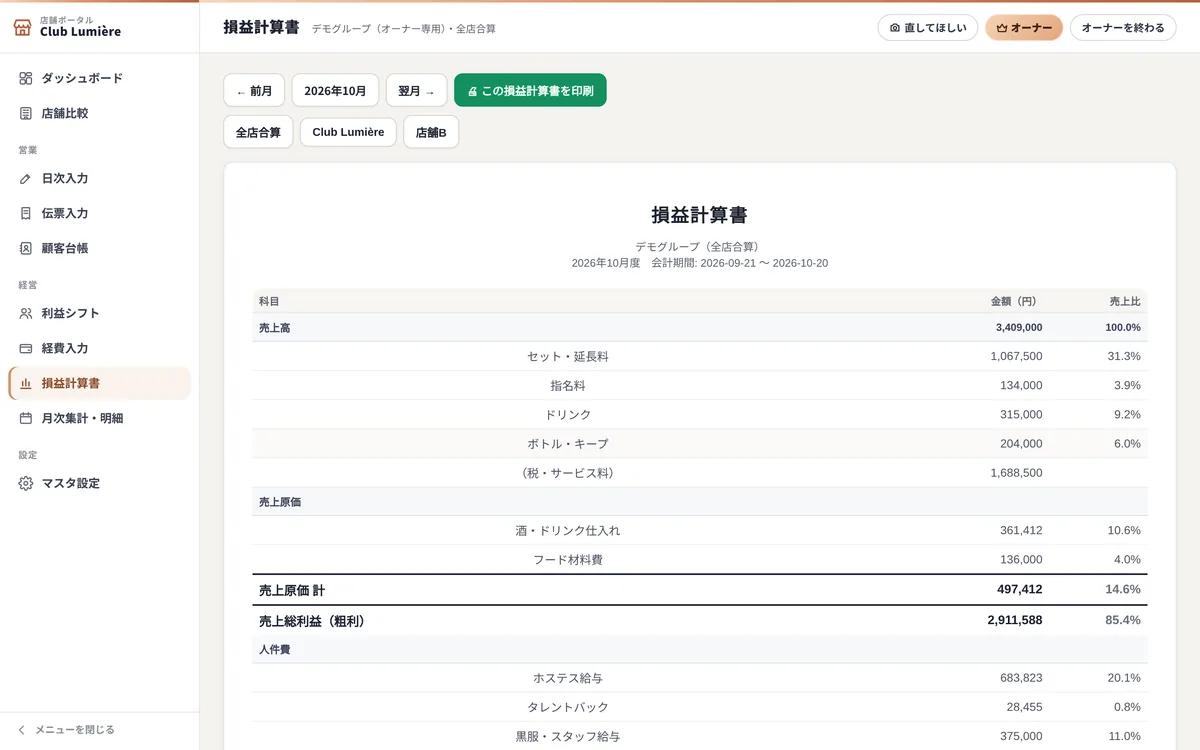
Enter cost of goods, staff pay, rent and so on in "Expenses", and the P&L is complete, from 7 sales lines, cost of sales, labor cost and overheads down to operating profit and ordinary profit, ready to print. Cast pay comes in from Pay & back calculation, so there is nothing to enter twice. If you use Register Close, money paid out of the register (for example shopping or hand-towel costs) is added under its expense category too.

P&L: sales breakdown, cost of sales, gross profit and labor cost (demo screen)
P&L (can be printed)

AI report, affiliated stores and Yayoi: turn the figures into the next move

  • AI business consultation report

    P&L, sales breakdown, figures by weekday, pay by cast member and the month-by-month trend, in one piece of text. Paste it into an AI and ask, "Where do we start fixing things next month?"

  • "Whole group" (affiliated stores)

    Compare each store's sales, labor cost and profit side by side. Move between the stores' screens without entering a PIN again.

  • Monthly summary

    A monthly sales report (A4 landscape) that brings one month of register close figures together, as a printout or a PDF.

  • Import into Yayoi accounting software

    Register close figures in a file (CSV) that Yayoi Kaikei can import. Please ask your tax accountant how to set the account titles.

Even with no signal, on the owner's phone

When you add it to the home screen of the owner's phone, the app saves the dashboard, "Monthly", P&L and "Shift Planner" figures automatically (encrypted on the device). In the car, abroad, anywhere with no signal, enter the owner's PIN and you can see the figures as they were when last saved.

It is viewing only; nothing can be entered. The figures are saved only on the owner's phone where this is turned on, and nothing is left on the store's shared devices.

Owner dashboard on the owner's phone: guests, sales per guest and labor cost rate, with register close and unpaid tabs (demo screen)
The owner's phone (added to the home screen as an app)

A month with the business figures

  1. 1

    Every day, before opening

    Check today's required sales in "Shift Planner" and decide how many to roster.

  2. 2

    Every day, after closing

    Once the slips and "Daily Entry" are in, the dashboard figures are refreshed.

  3. 3

    Entering expenses

    Rent, purchases and other expenses paid by invoice or bank transfer go into "Expenses". If you use register close, money paid out of the register goes in automatically.

  4. 4

    Once a week

    Look at the recommended headcount by weekday and rebuild next week's shifts.

  5. 5

    After the closing day

    Once pay is settled, check the month on the P&L, and use the AI business consultation report to work out next month's plan.

Pricing: the business figures are included in every plan

The owner dashboard, P&L, "Expenses", "Shift Planner" and the AI business consultation report, as well as the monthly summary and the import into Yayoi, are included in every Store Portal plan. The features are the same in every plan, and the price depends only on your store's size. For full pricing, see Pricing.

Store Portal

Every feature. Priced only by store size

Small

Monthlyfrom ¥9,800(tax incl.)

Setup fee¥0

Small-to-medium

Monthly¥22,000(tax incl.)

Setup fee¥0

Medium-to-large

Monthly¥33,000(tax incl.)

Setup fee¥0

Larger stores

  • Large¥44,000
  • Extra-large¥55,000

a month, tax incl.

No app to install. It runs in the browser on your phone or computer

On every plan, the setup fee is ¥0. Try it for a month; if it doesn't fit, you pay nothing. The first month is the time to try it and for us to build your settings. If you continue, the monthly fee starts from month 1.

  • All prices include tax.
  • The first month is the time to try it and for us to build your settings. If it doesn't fit, you pay nothing; if you continue, the monthly fee starts from month 1.
  • The setup fee is ¥0 on every plan.
  • For small stores, only at the start of the contract, the monthly fees for months 1 to 3 are paid together in advance (monthly after that).

FAQ

QWhat is the labor cost rate based on?
A

Cast pay plus the labor cost entered in "Expenses" (staff pay and so on), divided by sales. Cast pay uses the amount calculated by your store's rules (hourly wage, back and so on) as it is, so it matches the payslips.

QWhere does the "recommended headcount" in Shift Planner come from?
A

From that weekday's actual sales (the last 8 weeks), your target labor cost rate and the average pay per person. The target labor cost rate is set by your store. It is only a guide; the final headcount is the owner's decision.

QCan staff see the profit figures?
A

No. The dashboard, P&L, "Expenses" and "Shift Planner" open only with the owner's PIN. The owner's screen closes after 5 minutes without a touch and asks for the owner's PIN again. When the device sleeps or you switch to another app, it closes right away.

QCan I see it somewhere with no signal?
A

Yes, for viewing. The figures are saved on the owner's phone automatically, encrypted, so when there is no signal you can open the dashboard, "Monthly", P&L and "Shift Planner" as they were when last saved (the owner's PIN is required).

QHow do we import into Yayoi?
A

If you use register close, you can export a file (CSV) that brings together the sales of closed days and the money paid out of the register. You import that file into Yayoi. The account titles can be changed in the settings, so please check them with your tax accountant before you start.

QCan I see my affiliated stores' figures together?
A

Yes. The "Whole group" screen compares each store's sales, labor cost and profit side by side, and from there you can move to each store's owner screen. Pricing for several stores is quoted individually.

Can your price list and pay rules go in exactly as they are?
Just ask us.

Try it for a month; if it doesn't fit, you pay nothing. Anyone can try the demo right now (staff 1111 / owner 9999).