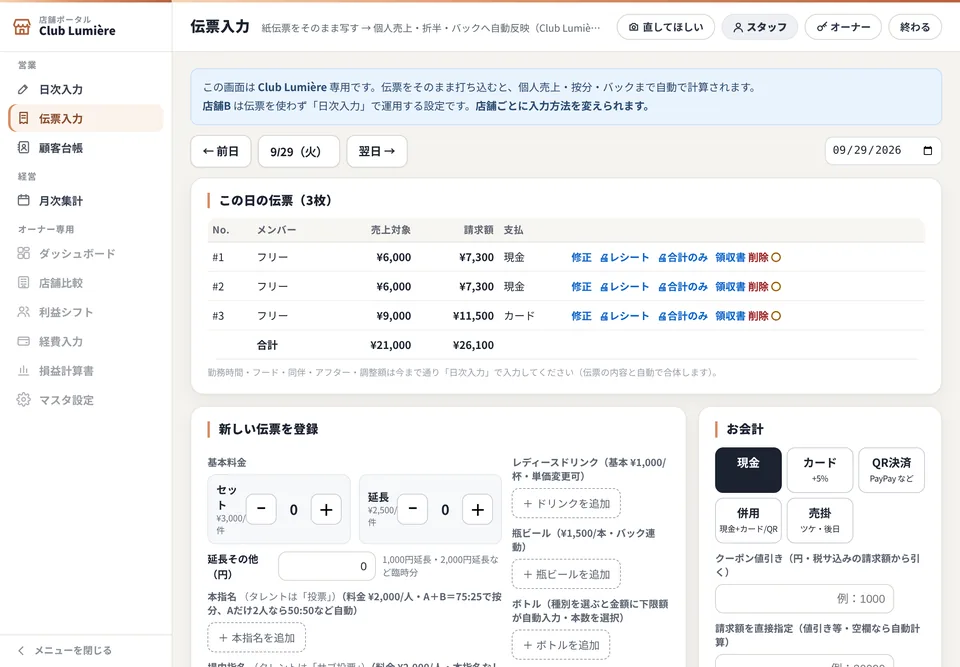
Choose "Tab (credit)" as the payment at checkout, and it goes onto the unpaid list with the customer's name. On the day they come to pay, tap "Collect" and enter the amount, and it flows into that day's register close as well. It is used together with register close.
Just choose "Tab" at checkout
Unpaid tabs always listed, with names
Partial payments recorded too, in cash or by card
Collections go into that day's register close
Included in every plan (together with register close)
Included in every plan (the features are the same at every size; only the price depends on store size) See prices
Good for
Stores with many regulars
Stores that keep their tab book in a notebook
Stores where tabs are paid in several installments
Demo screens are shown in Japanese. Stores can switch their screens to English on each device.
Common problems with tabs (credit)
A tab is a sale whose money has not come in yet. The vaguer the record, the later the collection.
You have to leaf through the tab book to know
Whose tab, from when, how much is left. Only the one person who keeps the book knows.
Partial payments make it messy
Half comes in, the rest next month. Each time the remaining amount is rewritten, it gets harder to tell which figure is right.
Collected cash makes the register not balance
The cash received went into the register, but there is no record. It shows up as an over/short at closing, and the search for the reason begins.
The older the tab, the more it gets put off
Chasing new tabs, you forget to check the old ones. By the time you notice, a lot of time has passed.
How a tab flows, from checkout to collection
1
Checkout: set the payment to "Tab"
At checkout in slip entry or on the table map, choose "Tab (credit)" and enter the customer's name. It cannot be saved with the name empty, so no tab is left where nobody knows whose it is.
2
That day: counted as sales
The bill goes into sales with the same calculation as any other payment. At register close, it appears under "Tab (credit)", separate from cash.
3
Every day: look at the unpaid list
The "Register Close" screen lists the customer, the date and the amount left. The owner's dashboard shows the unpaid total and the number of tabs too.
4
The day they come to pay: "Collect"
Enter the amount received and whether it was cash or card. A partial amount is fine; the rest stays on the list.
5
Close: it goes into that day's register
Cash received is added to the cash expected in the register that day, and appears under pay-ins on the daily sales report as a tab collection. Card collections appear in the breakdown on the final settlement and the daily report.
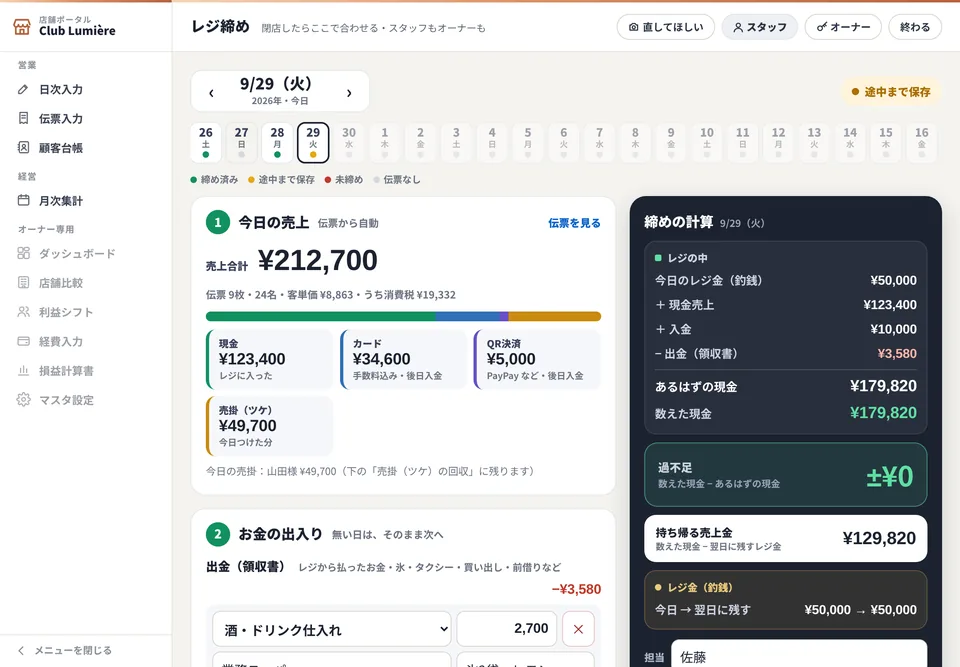
Unpaid tabs are always shown on the "Register Close" screen
Unpaid tabs are listed by customer name, date (with the slip number) and amount left. When a customer comes to pay, you enter it from "Collect" on that row.
The date, amount and cash-or-card of each collection stay on that day's register close and daily sales report, so there is no confusion when you check later. For a partially collected tab, the list also shows how much of the total has been collected. A collection entered by mistake can be cancelled.
Register close
Example: a tab paid in several installments
Amounts and dates are examples. Enter a collection each time you receive money, and the amount left goes down automatically.
Event
Amount
Left
Day 1: checkout put on a tab
¥50,000
¥50,000
Day 10: collected in cash
¥20,000
¥30,000
Day 20: collected by card
¥30,000
¥0 (leaves the list)
When the amount left reaches ¥0, the tab leaves the unpaid list. The record of each collection, when, how much and whether cash or card, stays as it is.
Owners see the unpaid total on their own phone
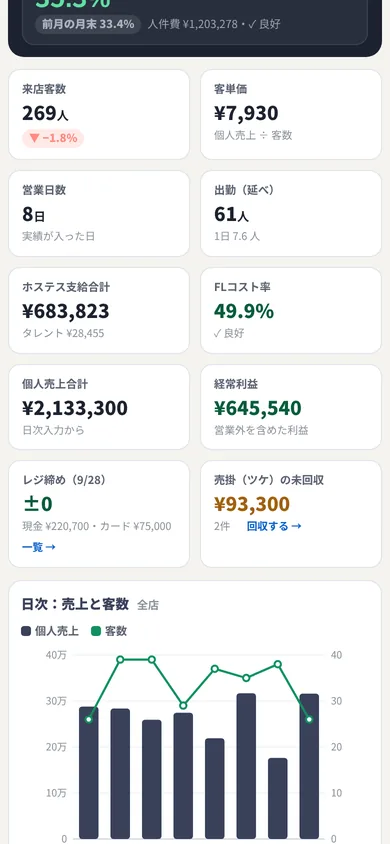
The owner dashboard shows the unpaid total and the number of tabs (credit). The latest register close's over/short is on the same screen.
Even on a day you are not at the store, open it with the owner's PIN to check. "Collect" in the unpaid section takes you straight to the "Register Close" screen.
Owner dashboard (owner's phone)
What tab management can do
Because it is fully custom-built around your store's pricing and pay rules, a tab customer's bill is calculated by your store's pricing rules too (sets, extensions, nominations, tax and service charge, rounding). On top of that, for tabs:
Choose "Tab" at checkout on the slip or the table map
Registered with the customer's name
Unpaid list (customer, date, amount left)
Partial collections and collections in several installments
Collections in cash or by card
Cancel a collection entered by mistake
Collections go into that day's register close
Tabs and collections appear on the final settlement and the daily sales report
"Tab (credit)" shown as the payment on the receipt
Unpaid total on the dashboard
Pricing: tab management is included in every plan
Tab collections are entered on the "Register Close" screen, so tab (credit) management is used together with register close. Both are included in every Store Portal plan. The features are the same in every plan, and the price depends only on your store's size. The setup fee is ¥0. See Pricing for details.
Store Portal
Every feature. Priced only by store size
Small
Monthlyfrom ¥9,800(tax incl.)
Setup fee¥0
Small-to-medium
Monthly¥22,000(tax incl.)
Setup fee¥0
Medium-to-large
Monthly¥33,000(tax incl.)
Setup fee¥0
Larger stores
Large¥44,000
Extra-large¥55,000
a month, tax incl.
No app to install. It runs in the browser on your phone or computer
On every plan, the setup fee is ¥0. Try it for a month; if it doesn't fit, you pay nothing. The first month is the time to try it and for us to build your settings. If you continue, the monthly fee starts from month 1.
All prices include tax.
The first month is the time to try it and for us to build your settings. If it doesn't fit, you pay nothing; if you continue, the monthly fee starts from month 1.
The setup fee is ¥0 on every plan.
For small stores, only at the start of the contract, the monthly fees for months 1 to 3 are paid together in advance (monthly after that).
Whether to accept tabs (credit), on what terms, and how to collect them is for your store to decide, in line with the law and local ordinances. If you are not sure, please check with a professional. Store Portal is a tool for keeping an accurate record of the amounts and the collections.
FAQ
QCan we give a tab customer a receipt or a formal receipt?
A
Yes. The receipt from checkout shows the payment as "Tab (credit)" with the customer's name. A formal receipt can be printed from the slip, so hand it over when you receive the payment. A monthly invoice is not included at present, but we can build one in the same format as the invoice your store uses now.
QCan staff enter collections too?
A
Yes. The "Register Close" screen opens with the staff PIN too, so it can be entered on the spot when the customer comes to pay. Changing a day that is already closed requires the owner's PIN.
QCan a collection entered by mistake be corrected?
A
It can be cancelled. Changing an entry on a day that is already closed requires the owner's PIN.
QHow are sales counted on the day a tab is opened?
A
The bill on a slip put on a tab goes into that day's total sales. At register close and on the daily sales report it is shown as "Tab", separate from cash, card and QR payments, so it is not mixed up with the cash in the register.
QCan snack bars and kyabakura use it?
A
Yes. It works for clubs, lounges, snack bars, kyabakura and any store that has tabs. Tabs are kept under the customer's name, so the more regulars you have, the more useful it is.