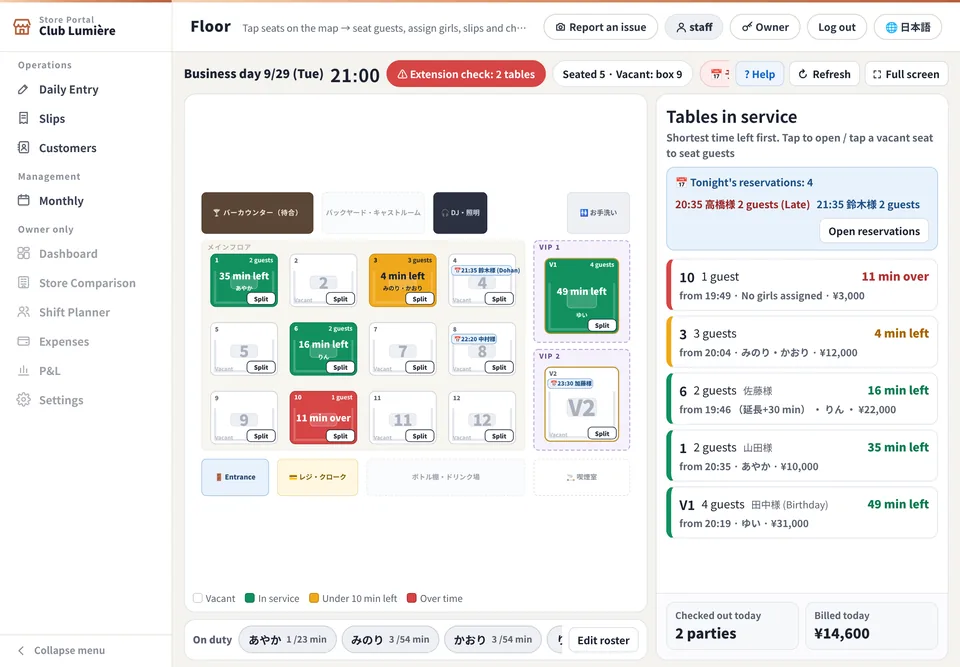
On a table map drawn from your floor plan, you see which cast member is at which table and how many minutes are left. Tables nearing the end turn yellow; tables past their time turn red. When a guest extends, just enter it on the slip and the end time moves automatically. It brings checkout during business into the same system.
A table map that matches your floor plan
Yellow and red tell you when to ask about an extension
Enter the extension on the slip and the time updates too
Cast rotation and table moves with a tap
Reservation book included. Reservations show on the table map too
Included in every plan (the features are the same at every size; only the price depends on store size) See prices
The busier it gets, the more the state of the floor depends on the staff's memory and notes.
Nobody knows how many minutes each table has left
Chasing the end of each set with handwritten notes and the clock. By the time you notice, the time is already up.
Cast rotation lives only in one person's head
Which cast member was at which table for how long is known only to the staff member doing the rotation. When shifts change, it cannot be handed over.
Move a table and the slip gets lost
Splitting a box seat, putting groups at a shared table: along the way, nobody knows which slip belongs to which group.
Reservations are in a notebook
Visit and dohan reservations are only written in a notebook, so it is hard to decide which tables to keep free.
One look at the table map tells you how many minutes each table has left
The Floor view is a screen that shows all the tables in use on a table map drawn from your floor plan. Occupied tables are green, tables nearing the end are yellow, tables past their time are red. At the top, "Extension check" shows how many tables you should go and ask.
The table list shows the seated groups in order of time left, shortest first. The row below shows the cast on duty, which table each one is at, and for how many minutes. Seatings and checkouts entered on other devices appear on the screen automatically every 20 seconds. On an iPad in full-screen mode, the table map and the list fit on one screen without scrolling.
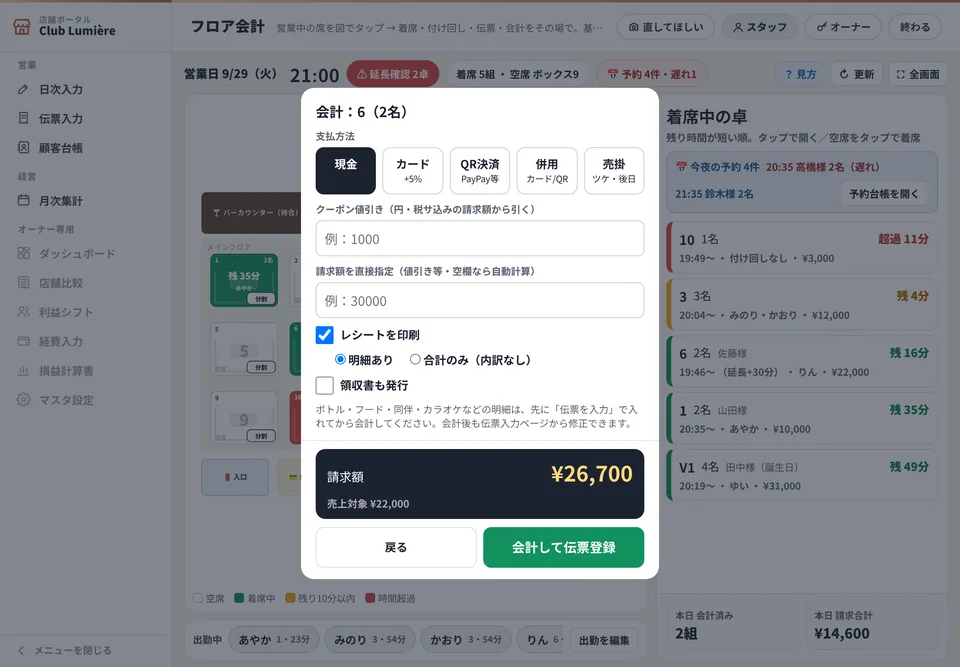
Checkout at the table, through to receipts and formal receipts
Open the table and tap "Checkout", and the bill calculated from your store's price list appears. How tax and service charge are applied and how rounding is done follow your store's rules. The order details are the same one-slip-per-group slip as in slip entry.
Payment can be cash, card (fee included), QR payment, split or tab (credit), and a coupon discount can be added. The receipt (itemized or total only) and the formal receipt (with the addressee, the corporate suffix before or after the company name, the description and the registration number) can be printed too. A paid slip becomes the sales, pay and register close figures as it is, so there is no re-entering after closing.
Checkout screen
A night with the Floor view
1
Before opening
Check tonight's cast on duty in the row below. Reservations with a table assigned already show on the table map.
2
Arrival and seating
Tap an empty table, enter the number of guests, the set length, the start time and the cast member to seat with them, and tap "Seat". When one group uses two tables, tap the second one straight after.
3
During business
Orders go in by opening the table and tapping "Enter slip". Cast rotation, table moves, splitting a box seat in two or making a shared table are all done by tapping the table map.
4
Asking about extensions
Go to the yellow and red tables, and when an extension is agreed, enter it on the slip. The end time moves and the color changes.
5
Checkout
Take the payment at that table and print the receipt or formal receipt. The cast member who was seated there returns to waiting automatically.
6
After closing
Paid slips are used as the day's sales for register close and pay calculation, as they are.
The table map and the extension rules are built around your store
Like every other part of Store Portal, the Floor view is fully custom-built around your store's pricing and pay rules. The table map, set lengths and extensions all follow the way your store works now. For example:
The table map (with the table names you use)
Set length options (e.g. 60 or 90 minutes)
Length of one extension (e.g. 30 minutes)
How many minutes before the end a table turns yellow
Table names when a box seat is split
The price list for sets, extensions, nominations and dohan
How tax and service charge are applied, and how rounding is done
Card fee (e.g. 5%)
Whether to use cast rotation and the reservation book
Whether to use the English screens
The reservation book and the customer book connect to the table map too
Enter a visit or dohan reservation with the time, number of guests, name, table and nomination, and it appears above the table map, like "20:00 Mr. A". If the guest has not arrived 15 minutes after the reserved time, it is marked "Late". When they arrive, you seat them with the reservation details as they are.
If you pick the customer when seating them, each checkout leaves a visit record in the customer book. Each customer's visits, nominations and bottle keep can be seen together in the book.
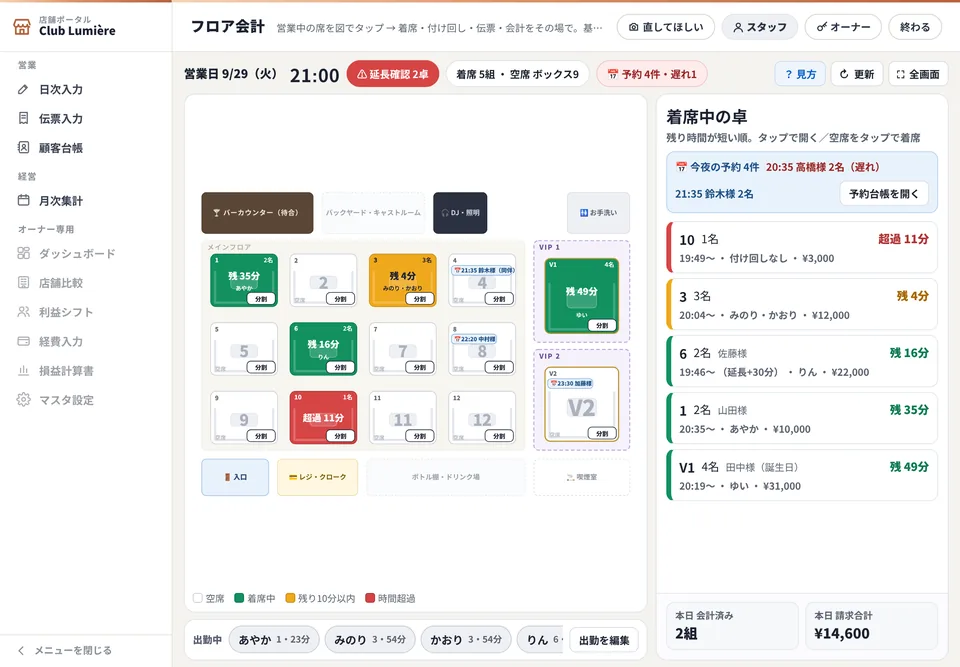
Japanese staff see the same table map in Japanese
The English screens are turned on per store and switched per device. So the same table map can be shown in English for you and in Japanese for your Japanese staff.
Only the text on the screen switches. Receipts and formal receipts are printed in Japanese, even when printed from an English screen.
The Japanese screen (demo). The English screens are for stores that turn them on
Pricing: the Floor view is included in every plan
Like slips, pay, business figures, the customer book and My Page, the Floor view is included in every Store Portal plan. The features are the same in every plan, and the price depends only on your store's size. The setup fee is ¥0. See Pricing for details. In the demo, the floor view is called "Floor checkout".
Store Portal
Every feature. Priced only by store size
Small
Monthlyfrom ¥9,800(tax incl.)
Setup fee¥0
Small-to-medium
Monthly¥22,000(tax incl.)
Setup fee¥0
Medium-to-large
Monthly¥33,000(tax incl.)
Setup fee¥0
Larger stores
Large¥44,000
Extra-large¥55,000
a month, tax incl.
No app to install. It runs in the browser on your phone or computer
On every plan, the setup fee is ¥0. Try it for a month; if it doesn't fit, you pay nothing. The first month is the time to try it and for us to build your settings. If you continue, the monthly fee starts from month 1.
All prices include tax.
The first month is the time to try it and for us to build your settings. If it doesn't fit, you pay nothing; if you continue, the monthly fee starts from month 1.
The setup fee is ¥0 on every plan.
For small stores, only at the start of the contract, the monthly fees for months 1 to 3 are paid together in advance (monthly after that).
FAQ
QCan the table map be made in the shape of our store?
A
Yes. Show us a floor plan or photos of the store and we build it in that shape. The counter, box seats and VIP layout, and the table names, are all your store's own. If you rearrange the tables later, just ask from "Report an issue" at the top right of the screen, with a photo and a few words.
QWho enters extensions, and where?
A
A staff member opens the table and enters the number of extensions from "Enter slip". Once the extension is in, the end time moves, and a table that was yellow or red goes back to the color for its time left. The length of one extension and how many minutes before the end a table turns yellow are set to your store's rules.
QCan we use it without an iPad?
A
Yes. It opens in the browser on a phone, iPad or PC, so there is no app to install. On a phone, the table map sits at the top with the table list below it.
QCan we use the table map while keeping our current register?
A
Yes. The table map is included in every plan. You can start with checkout on your current register and later move checkout during business into Store Portal too; the price does not change. See Pricing for details.
QWe don't use cast rotation or reservations. Is that OK?
A
Yes. Features you don't use can be left off the screen, for a simpler layout with just the table map and checkout. How much you use is decided with you at the first consultation.