

Store Portal店舗ポータル 日本語

Pay & back calculation

Kyabakura and host clubpay and back,calculated by your rules.

The travel fee is free for the first visit only.

Hourly wages, back (commission) rates, daily pay advances, closing day: the pay rules that differ from store to store go in exactly as they are. Just enter the daily slips and shifts, and the payslips are ready on the closing day. You can keep the register you have now.

  • Back rates and the closing day, by your store's rules
  • Totaled automatically every day from slips and shifts
  • Payslips show the amount after daily pay advances
  • Pay figures are for the owner only

Included in every plan (the features are the same at every size; only the price depends on store size) See prices

Good for

  • Stores with detailed back rules
  • Stores with many cast members
  • Stores that give daily pay advances
  • Stores where only one person can do the calculation
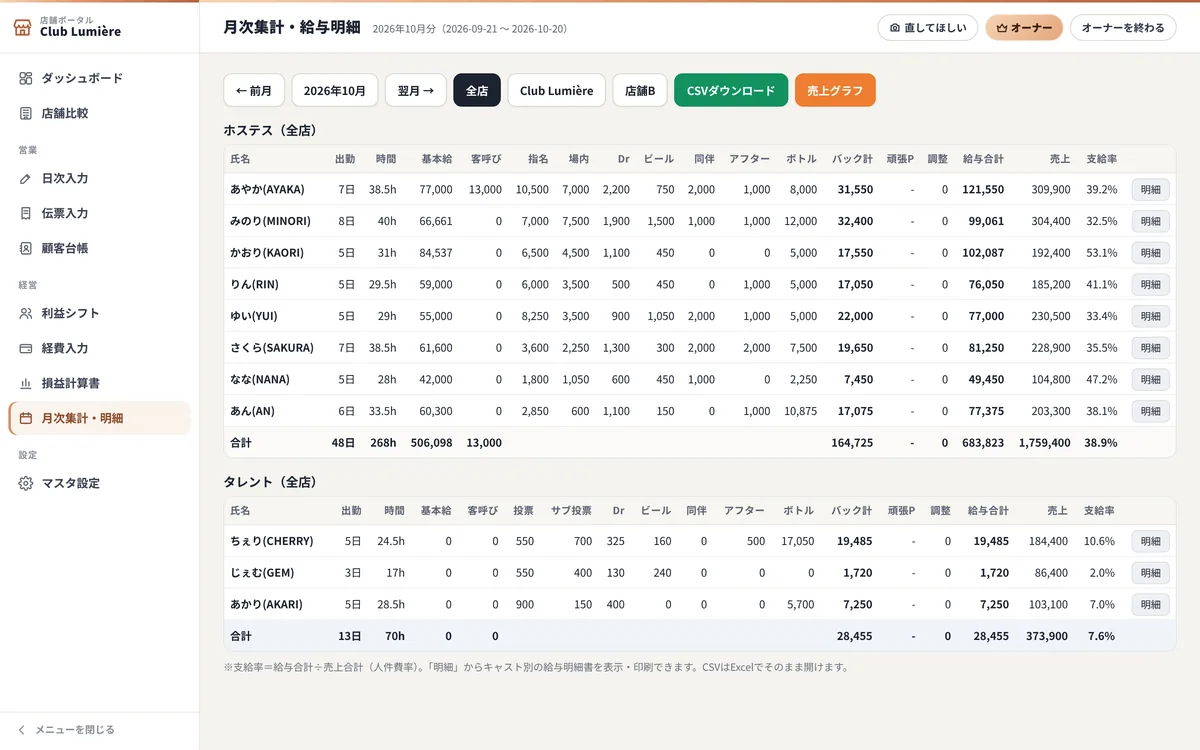
"Monthly" and payslips (owner's screen): each cast member's shifts, hours, base pay, back, total pay and sales (demo)

Demo screens are shown in Japanese. Stores can switch their screens to English on each device.

Common problems with kyabakura and host club payroll

The more detailed a store's pay rules, the bigger the calculation before the closing day.

  • The nights before the closing day are gone

    Turning over the slips one by one, recounting nominations, dohan, drinks and bottles. The more cast members, the longer it takes.

  • Only one person can do the calculation

    Only the manager understands the spreadsheet formulas and the exceptions to the back rules. If that person is away, pay day is missed.

  • Daily pay advances that don't get deducted

    Daily pay advances are written in a notebook and deducted all at once at month end. One that was not written down, or not deducted, becomes a discrepancy later.

  • Hard to answer "Why this amount?"

    You can't show on the spot how many bottles or drinks it was for. Explaining takes time, and both sides are left uneasy.

Pay rules you can set exactly as they are

Show us what you use now: your hourly wage table, back rate table, daily pay advance notebook. We build it around your store's pricing and pay rules in full (fully custom-built), so there is no need to fit your store to an off-the-shelf payroll product. For example, you can set:

  • Hourly or daily wage for each cast member
  • Back for nominations (honshimei) and in-house nominations
  • Back for dohan and "after" (going out with a guest after closing)
  • Back for drinks and bottles
  • How to split when a group has two nominated cast members (by ratio)
  • How to split when there is no nomination, only in-house (equal shares)
  • Commission only, with no hourly wage
  • Deduction of daily pay advances
  • Closing day (the 20th, the last day of the month, etc.) and pay day
  • Withholding tax rate (shown on the payslip) and rounding

Nominations and drinks on the slip go straight into back

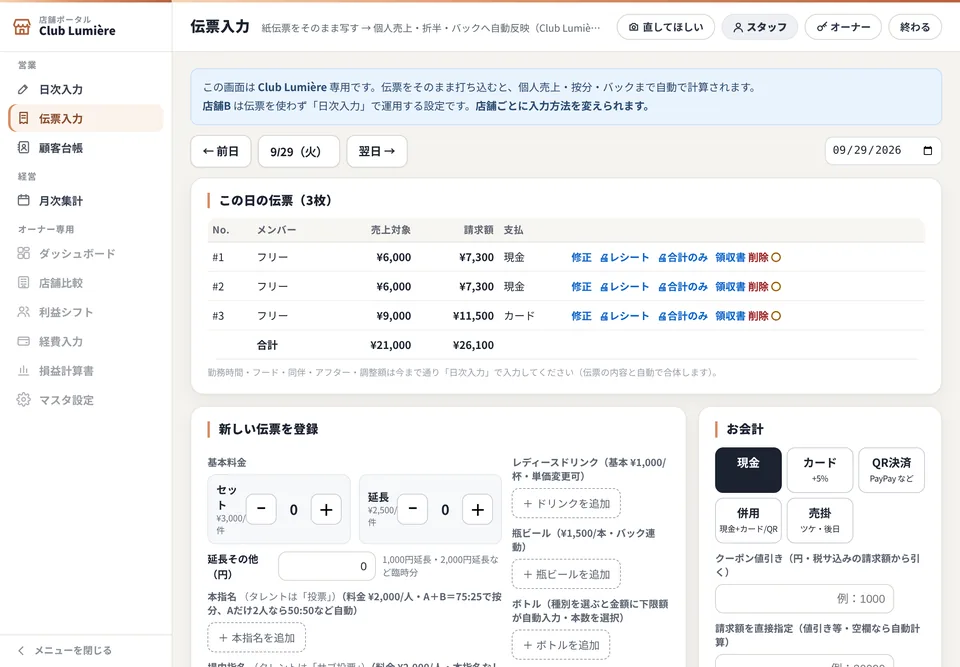
One slip per group. For nominations, in-house nominations, drinks and bottles, you pick the cast member they belong to. The counts on paid slips go into that cast member's sales and back automatically, every day. For how slips are entered, see Slips & sales totals.

Clock-in and clock-out are just times picked in "Daily Entry". Working hours are counted automatically even when business runs past midnight, so there is no calculator needed for hourly pay.

Slip entry screen: set, extension, nomination, drinks, bottles and checkout (demo)
Slip entry

Example: hourly wage + back − daily pay advances

All figures are examples (not the real amounts of any store). If one cast member's month looked like this:

Hourly wage¥2,500 × 5 hours × 12 days¥150,000
Nomination back¥2,000 × 10 nominations¥20,000
Dohan back¥3,000 × 2 times¥6,000
Drink back¥200 × 50 drinks¥10,000
Total before deductionsHourly wage + back¥186,000
Daily pay advances¥10,000 × 3 times−¥30,000
Amount paid (example)¥156,000

Rates, counting and rounding are calculated as set for your store. Withholding tax can be worked out at the rate (%) you decide and shown on the payslip (not included in this example). Please check the rate and the method with your tax accountant.

From the daily entries to pay day

  1. 1

    During and after business: slips

    Enter one slip per group. If you keep your current register, enter them together after business. If you take the payment on the table map, the slip is created right then.

  2. 2

    After closing: shifts and daily pay advances

    Pick the clock-in and clock-out times in "Daily Entry". For a cast member who received a daily pay advance, enter it as a minus under "Other adjustments" and it is deducted from pay.

  3. 3

    Every day: totaled automatically

    Each cast member's back and sales build up from each day's figures. Cast members can check their own counts on My Page.

  4. 4

    Closing day: check the pay

    Open "Monthly" with the owner's PIN and compare each cast member's shifts, hours, back and total pay.

  5. 5

    Pay day: hand out the payslips

    From "Details" on the "Monthly" screen, open each cast member's payslip and print it as it is. You can also export a CSV. If you set a pay day, it appears on the payslip too.

Cast members check their own counts on their own phone

Cast members open My Page with their own PIN. They can check this month's days worked and their nomination, dohan, drink and bottle counts, along with the day-by-day record.

Any difference in the counts is noticed before the closing day, so checking on pay day takes less time. They see only their own figures: other cast members' sales and pay, and the store's profit, do not appear. For the cast member's view, see Cast My Page.

Cast My Page: this month's results, next goals and the sales ranking (demo)
Cast My Page

Pay figures are for the owner only

The "Monthly" screen opened with the staff PIN shows days worked and hours, back from nominations through to bottles, total back and sales. Hourly wages, base pay, total pay and payslips appear only with the owner's PIN. The owner's screen closes after 5 minutes without a touch, or when the device sleeps or you switch to another app, so it is safe even on a device the store shares.

Total pay goes into the P&L as labor cost as it is, and feeds the labor cost rate on the owner dashboard. For how to read the labor cost rate, see Dashboard, P&L & Shift Planner.

Pricing: pay and back calculation is included in every plan

Pay and back calculation is included in every Store Portal plan. The features are the same in every plan, and the price depends only on your store's size. For full pricing, see Pricing.

Store Portal

Every feature. Priced only by store size

Small

Monthlyfrom ¥9,800(tax incl.)

Setup fee¥0

Small-to-medium

Monthly¥22,000(tax incl.)

Setup fee¥0

Medium-to-large

Monthly¥33,000(tax incl.)

Setup fee¥0

Larger stores

  • Large¥44,000
  • Extra-large¥55,000

a month, tax incl.

No app to install. It runs in the browser on your phone or computer

On every plan, the setup fee is ¥0. Try it for a month; if it doesn't fit, you pay nothing. The first month is the time to try it and for us to build your settings. If you continue, the monthly fee starts from month 1.

  • All prices include tax.
  • The first month is the time to try it and for us to build your settings. If it doesn't fit, you pay nothing; if you continue, the monthly fee starts from month 1.
  • The setup fee is ¥0 on every plan.
  • For small stores, only at the start of the contract, the monthly fees for months 1 to 3 are paid together in advance (monthly after that).

FAQ

QCan we use just the payroll, without changing our register?
A

Yes. You keep your register and the way you take payments; you just enter the slips after business, and sales, back and pay are automatic. The setup fee is ¥0, and you can start on your own phone, iPad or PC.

QOur back rates and counting are different from other stores. Is that OK?
A

Yes. Back rates and counting differ from store to store, so we ask about your current rate table and rules and set them exactly that way. When a rate changes, the owner can change it in "Settings" (it applies to calculations from then on). If you want the counting changed, ask from "Report an issue" at the top right of the screen you are using, or just give us a call.

QHow are daily pay advances deducted from pay?
A

On the day you hand over the advance, enter it as a minus under "Other adjustments" in "Daily Entry". Pay on the closing day is reduced by that amount, and it appears on the payslip as an adjustment. If you use register close, an advance paid out of the register can also be kept as a payout marked "advance" at register close (that is a record only; it is not deducted from pay automatically).

QCan it calculate withholding tax too?
A

If you set a withholding tax rate (%), the payslip shows the withholding amount and the net pay after it. You can also choose how to round hourly pay and the like (round down, round half up, round up). Please check the rate and the method with your tax accountant. If you need a different calculation, we build it to your store's rules.

QCan it be used for host club payroll?
A

Yes. We ask about your store's rules and set them up: back for nominations, dohan, drinks and bottles, daily pay advances and the closing day. You can also decide how sales are split when a group has two nominated hosts, and use a commission-only form with no hourly wage. Other ways of counting are built to fit your store too.

QCan we print the payslips and hand them out?
A

Yes. Open "Monthly" with the owner's PIN, open each cast member's payslip from "Details" and print it as it is.

Can your price list and pay rules go in exactly as they are?
Just ask us.

Try it for a month; if it doesn't fit, you pay nothing. Anyone can try the demo right now (staff 1111 / owner 9999).