
Tailoring as you go (change requests)
Tailoring it to your store?Just ask from the screen.
The travel fee is free for the first visit only.
Store Portal is a store management system that is fully custom-built around the way your store works. The "I want this changed" and "This looks wrong" that come up once you start using it can be sent from "Report an issue" at the top right of the screen you are on: circle the spot on the photo and add a few words. Your store name, the screen and the version are attached automatically, so there is nothing to explain. The request is complete right there, and our replies and "Fixed" show on your store's screen too. For urgent problems, just call us as before.
- Ask from the screen where you noticed it, with a photo and a few words
- Nothing to explain: store name, screen and version are attached automatically
- Fewer questions back and forth, so tailoring it to your store is quicker
- See the progress on your store's screen, for peace of mind
- Improvements to fit your store cost nothing extra
Included in every plan (the features are the same at every size; only the price depends on store size) See prices
Good for
- Stores whose pricing and back rules change often
- Stores that want to pass on what they notice, on the spot
- Stores with no time to make a phone call
- Stores that want every detail to fit their store
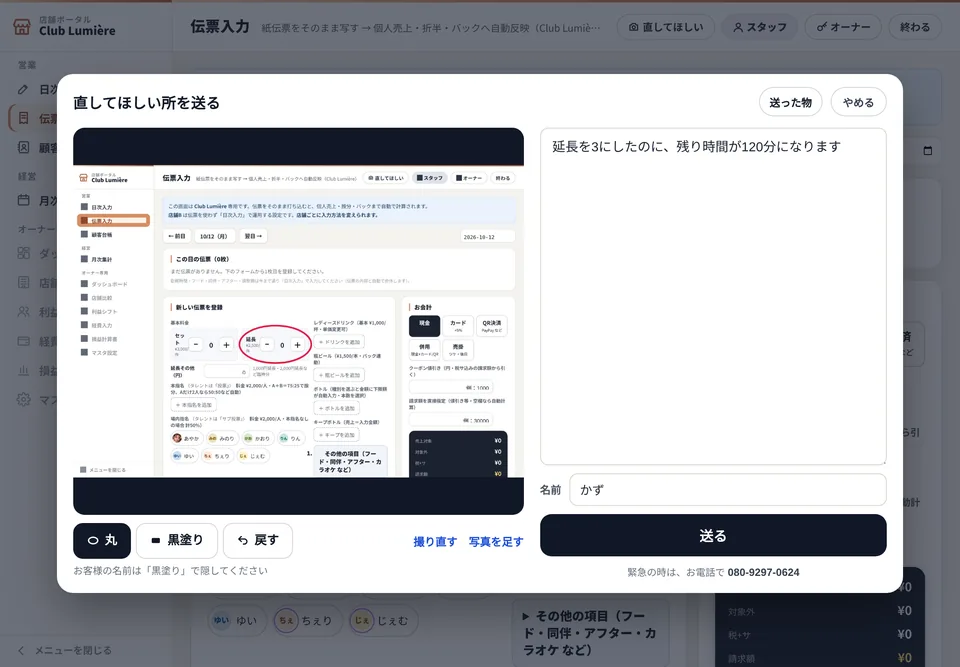
Demo screens are shown in Japanese. Stores can switch their screens to English on each device.
You want it to fit your store, but explaining is hard
The details of how your store works become visible once you start using the system. But putting "I want this changed" into words is harder than it seems.
Not sure what to write on LINE
You can say "I want to change how extensions are added," but writing out which screen and which number takes effort. You end up going back and forth many times.
No time to call during business
You notice it in front of guests. After closing, you can't remember what you wanted changed, or how.
No idea what happened after you asked
Is it fixed, or not yet? You don't know unless you ask.
No record of who asked, or when
Messages that came to a staff member's personal LINE leave no record, at your store or with us.
Circle it on the photo, add a few words. That's the whole request
There is always a "Report an issue" button at the top right of the screen you are using. Tap it, and the screen you are looking at becomes a photo, just as it is. Trace the spot you want changed or fixed with your finger, and a circle appears there. If a customer's name is showing, you can hide it with "Black out" before you send. You can also attach photos from your device (up to 3).
Then just add a few words about what you want. Your store name, the screen name, the version you are using, the device and the date and time are attached automatically, so there is nothing to explain. Adding your name is optional. The moment you send it, it reaches us, the people who built it. We can open the same screen in the same version to check, so there are fewer questions back and forth and tailoring it to your store is quicker. For urgent problems, you can call us directly from the phone number at the bottom of the window. On a phone it is two screens: ① circle it on the photo → ② add a few words and send.
From "Received" to "Fixed", all visible on your store's screen
When a reply arrives, a red mark appears on the "Report an issue" button at the top right. Open it and, for each request, you see the steps Received → Fixing → Fixed → Done and the messages back and forth. You know where things stand without asking, "So what happened with that?"
When we fix something, you get a "Fixed (version)" notice. Fixes reach your store automatically, so there is no work on your side. Your store's screen shows "It works once this store is on version X", so check it, then tap "It's fixed" and the request is done. Done requests leave the list, so only the open ones remain. If it is not fixed yet, tap "Still not fixed" and send a reply right there.
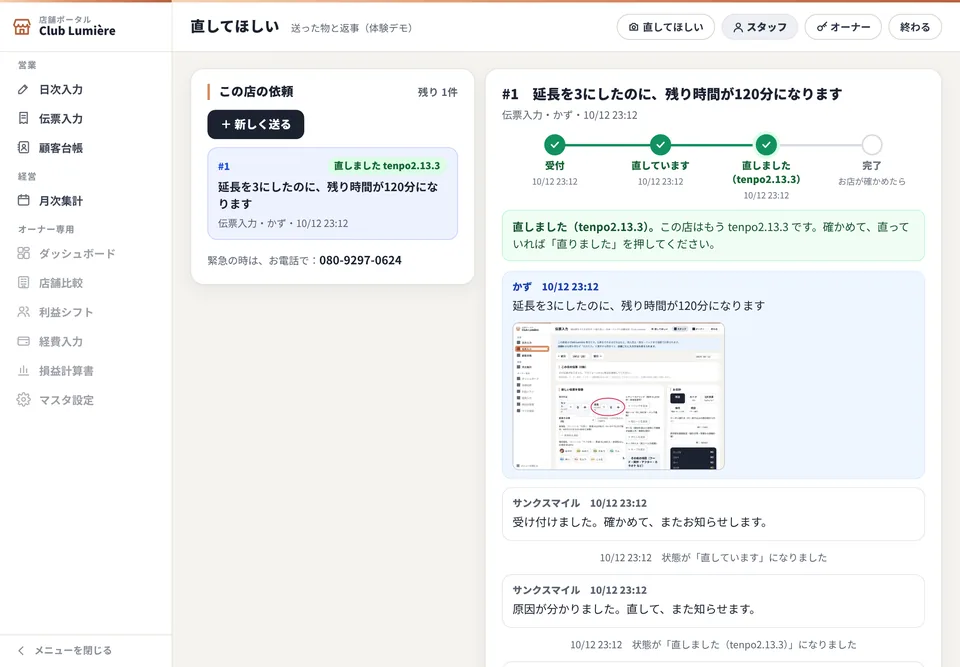
You can try it in the demo, all the way to sending. Try "Report an issue" in the demo (In the demo, replies arrive automatically and nothing reaches us.)
Requests from every store arrive in one list
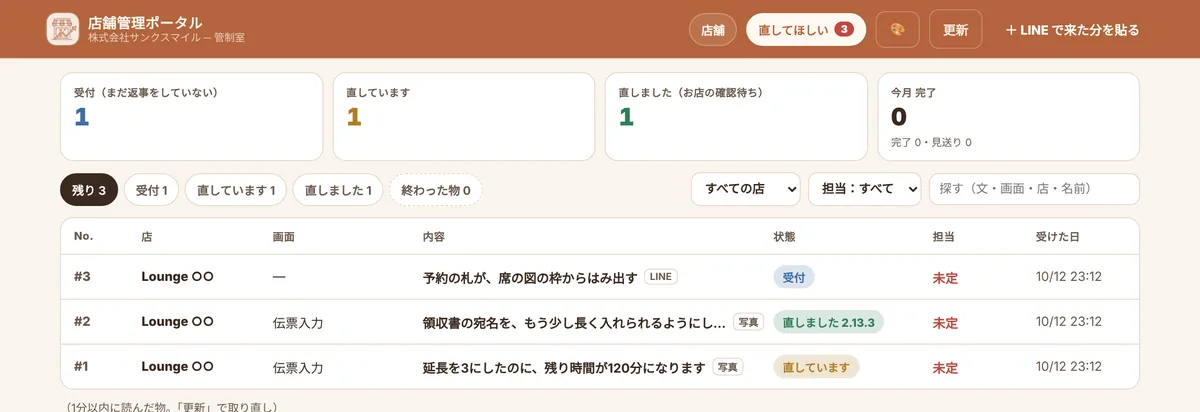
What stores send goes into one list on our side that covers every store. The photo, note, screen and version are all there, so we check each request in turn, make the change to fit your store, and send back replies and "Fixed".
Requests you send us by LINE go into the same list too. Either way, replies and progress show on your store's screen.
From the screen, or by phone: when to use which
Usually, just ask from the screen. For urgent problems, just call us as before.
| From the screen (top right) | By phone | |
|---|---|---|
| "I want this changed" (changes to fit your store) | ✓ | — |
| It works, but a figure or the display looks wrong | ✓ | ✓ |
| Not sure how to use something | ✓ | ✓ |
| Urgent (you need help right now) | — | ✓ |
| Explaining your store name, screen and version | Attached automatically | You tell us |
| Progress after that | Shows on your store's screen | Ask by phone |
The phone number is also shown at the bottom of the "Report an issue" screen.
How we protect your photos and messages
Your store's screens can show sales figures and customer names. So we have set these rules:
- You can hide customer names with "Black out" before sending
- Photos are kept only on your store's server
- Only people signed in with your store's PIN can see the photos (knowing the address is not enough to open them)
- Photos are deleted automatically 90 days after the request is done (the text stays)
- On our side, access can be limited to the staff who handle fixes (they cannot see your store's safe or settings)
- For urgent problems, call us as before
Works the same on every plan
"Report an issue" works from the same button, in the same way, on every plan. Your price list (sets, extensions, nominations, the order of tax and service charge, rounding), your pay and back rules, the form of your slips and printouts, the items shown on screen, the table map: what we built at the first consultation keeps being tailored to your store as you use it. There is no extra charge.
How it is built in the first place is covered under Fully custom-built, and the path from signing up to going live under Getting started.
FAQ
QWhat can I ask for?
Changes to fit the way your store works ("I want this changed"), such as pricing rules, screen layout or the format of slips and printouts, and bugs ("This looks wrong"), can all be asked for in the same way. If you are not sure how to use something, you can send that from the screen too.
QDoes it cost anything?
Improvements to fit your store cost nothing extra. "Report an issue" is available on every plan. The Floor view and register close are included in every plan too (Pricing). New features are included in the monthly fee too (only devices are separate).
QOnce I send a request, when will it be fixed?
It depends on the request. You get a reply at each step, when we receive it, when we find the cause and when we fix it, so you know where things stand without having to ask. For urgent problems, please call us.
QCustomer names show in the photo.
You can hide them with "Black out" before sending. Photos are kept only on your store's server, and only people signed in with your store's PIN and our staff handling the fix can see them. Photos are deleted automatically 90 days after the request is done.
QCan I send it by LINE instead?
Yes, LINE is fine too. We put those requests in the same list, and replies and progress show on your store's screen. But when you ask from the screen, your store name, screen and version are attached automatically, so we can tailor it to your store without asking you questions back.
QCan staff send requests too?
Yes. Anyone on a device signed in with your store's PIN can send one. Adding a name is optional.
QHow do I know when it is fixed?
You get a "Fixed (version)" notice, and your store's screen shows "It works once this store is on version X". Fixes reach your store automatically, so there is no work on your side. Check it, then tap "It's fixed" to finish, and the request leaves the list.
Can your price list and pay rules go in exactly as they are?
Just ask us.
Try it for a month; if it doesn't fit, you pay nothing. Anyone can try the demo right now (staff 1111 / owner 9999).